Where to find Flow Rooms
Open the Flowboard, then choose Flow Rooms in its control panel. This works for personal boards as well as thread-linked boards when you have editing access. A read-only group preview is not a shared editing board. If the control is missing, confirm your invitation was accepted, your role allows editing and the board has finished loading.
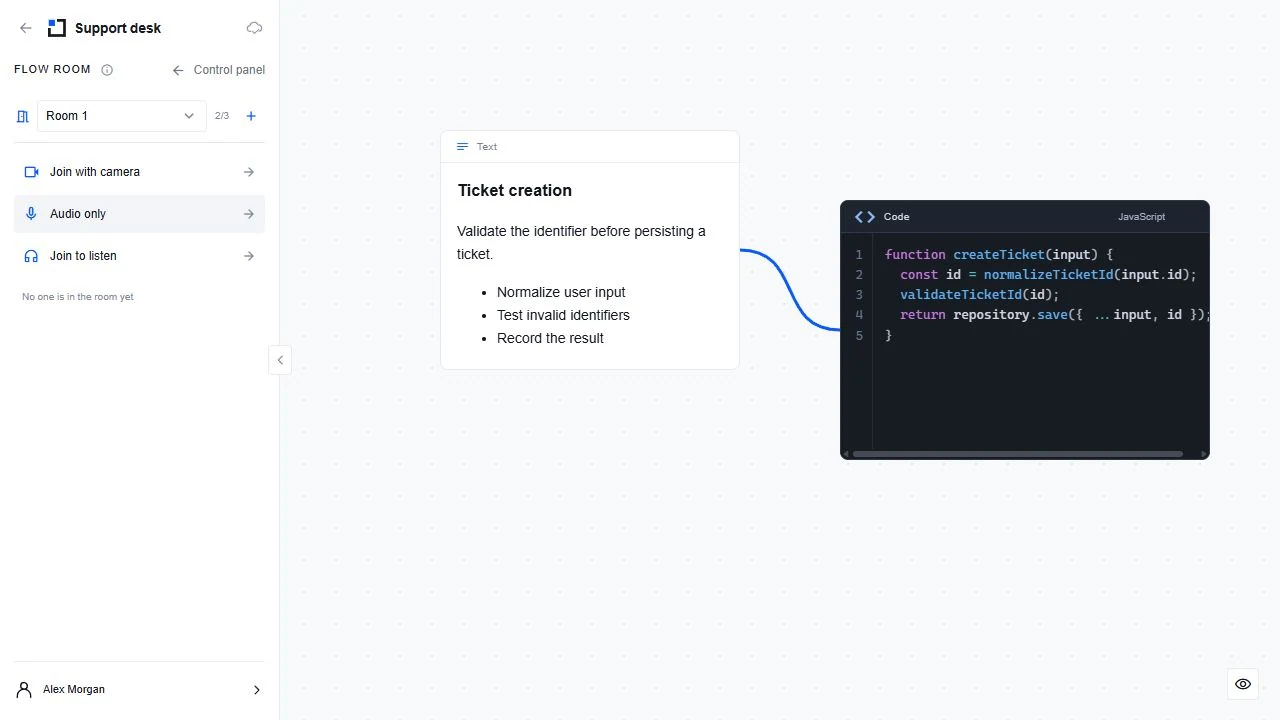
Choose a room and join
Check the selected room and the names shown before joining.
- Open the Flow Room dropdown. Choose the intended room. The nearby + creates another room when fewer than three exist.
- Choose Join with camera, Audio only or Join to listen. Camera mode needs camera and microphone access; audio-only needs microphone access. Listen-only does not send your microphone or camera.
- If the browser asks, allow only the devices you intend to use. OS privacy restrictions still apply. Look for the browser’s site-permission controls if you previously blocked access.
- An empty room can be entered directly. For an occupied room, wait for an existing participant to Allow your entry. Waiting for entry is not the same as being connected; Cancel withdraws the request.
- After joining, check the room label and mute/camera states. Confirm that the other participant can hear you before relying on the call.
Keep working without leaving
Use the floating toolbar to open Assets or return to board work while staying in the room. Closing or backgrounding the Flow Rooms panel is different from Leave room. Use the connected-room strip to return and control microphone/camera. Clicking the canvas does not end the room.
People, video and chat
Open People to see participants and pin a collaborator’s video. Multiple pins share the available video space. Maximize videos expands that view; Restore room panel returns it. Room chat is temporary—put decisions that must remain in a phase update or Flowdoc.
Switch rooms deliberately
Select the destination in Flow Room. An occupied destination can require approval. Wait for switching/reconnecting to finish and check the final room label. Rooms isolate their participants, audio and chat. The maximum is three rooms per board; creating another board is not a workaround for changing someone else’s room permissions.
No audio, video or slow recovery
Check mute/camera controls, browser site permissions, OS privacy settings and the intended audio device. Use Resume audio if the browser paused playback. On a weak connection, let recovery finish rather than repeatedly leaving/rejoining; turn camera off or stop competing uploads to help audio. If someone cannot join, check pending entry requests as well as permissions.
Leave the room
Use Leave room to end your participation. Returning to board tools keeps the room connected; closing the board/tab or signing out can interrupt it. Do not assume a minimized room has disconnected.