Read the connection map
Open Dev Monitor → Map. Follow devices to project folders or individual files, then to their linked threads. Unassigned items stay in a cluster until you choose a destination. Use search, pan and zoom to find the project.
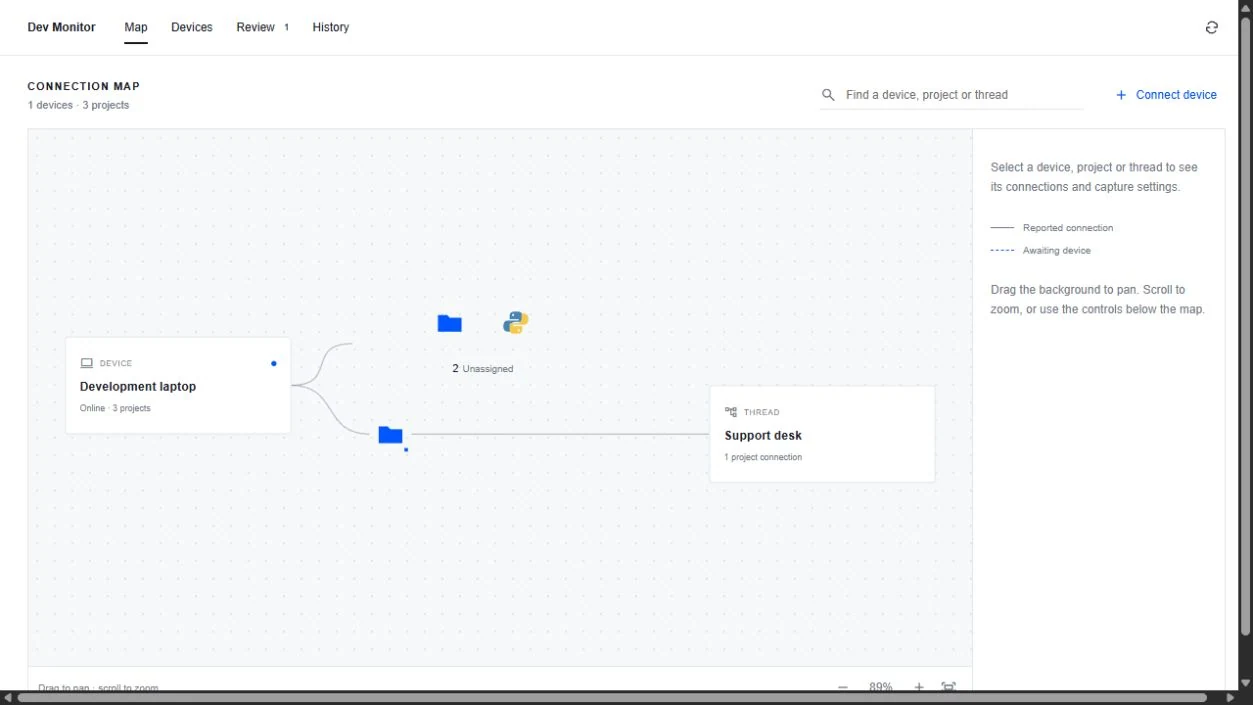
Enable a discovered project
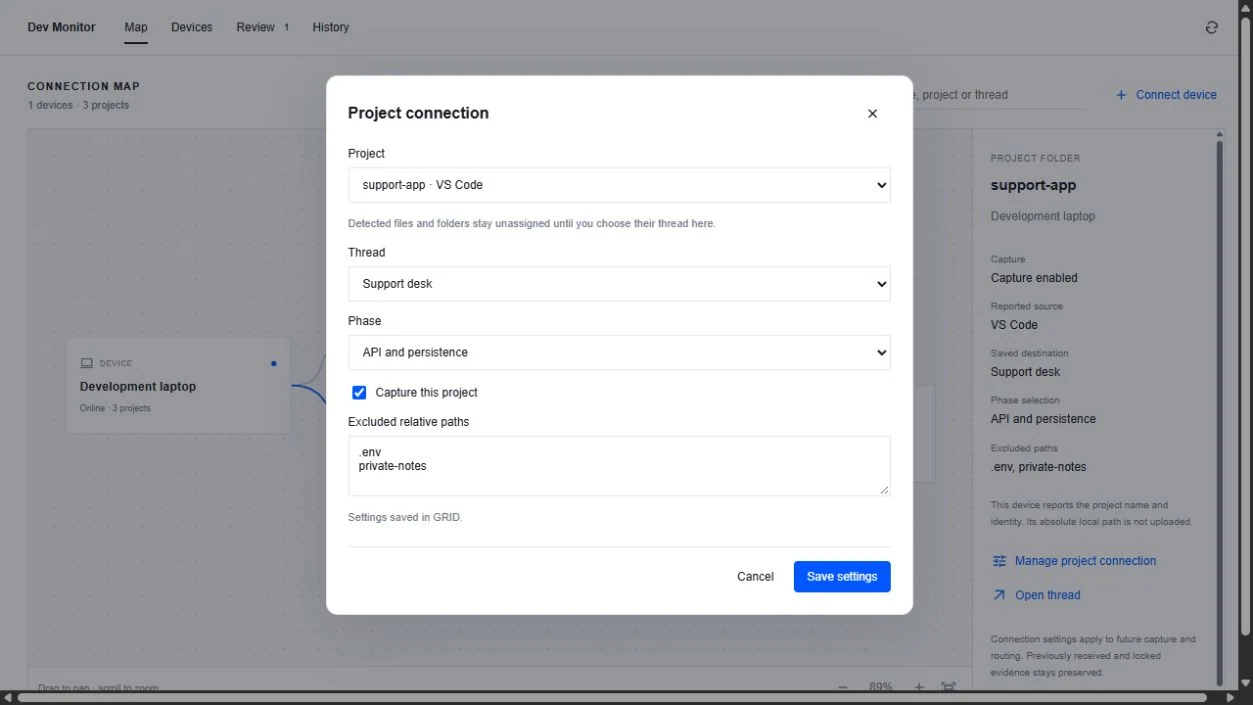
On Map, select the folder/file icon, then choose Manage project connection (already linked) or Assign to a thread (unassigned) in Connection details. Alternatively, open Settings for the device from Devices.
- Choose the discovered project and intended Thread. If the intended thread is missing, create it or confirm your collaboration access first.
- Choose a phase if known; otherwise keep Choose during packet review.
- Check Capture this project. In Excluded relative paths, put one project-relative file/folder per line, such as private-notes or notes/private.txt—not the device’s absolute path. Do not assume wildcard patterns are supported.
- Choose Save settings. Wait for the device to apply them; saving a request does not mean it has reached an offline computer.
- Make a small future saved change inside that exact scope. Check Devices for capture/adapter status, use Pull now for eligible packets, and inspect Review when a packet becomes ready. No immediate packet does not by itself mean capture failed.
Add a folder or a single file yourself
Choose Add file or folder on a device card. Paste the absolute path as it exists on that computer, choose its thread and submit. Example paths: C:\Projects\support-app or /Users/alex/Projects/support-app. A folder includes its permitted files; a file path includes only that file. The background helper validates the path—the browser does not browse your remote filesystem.
Duplicates and existing contents
If a scope is already connected, check that connection rather than creating an overlapping one. Existing contents establish a local starting point; only future changes are captured. Adding a path does not reconstruct its earlier development.
Awaiting device or offline
“Awaiting device” means the configuration has not yet been applied/reported. “Enabled · offline” means capture is configured but the device has not recently checked in. Check the path and applied status instead of repeatedly changing the mapping.