Before you start
Sign in to your personal GRID account. Have a thread ready for the project: if needed, open Threads → New thread first. You need Node.js 22 or newer, npm/npx and network access. On Windows, open Start and search for PowerShell. On macOS, open Terminal with Spotlight. Run the two version checks below before generating a short-lived setup key. Node should report v22 or higher; npm should report a version. Use a computer you are authorized to monitor; obtain administrator approval on managed devices.
node --version
npm --version
Generate and run the setup command
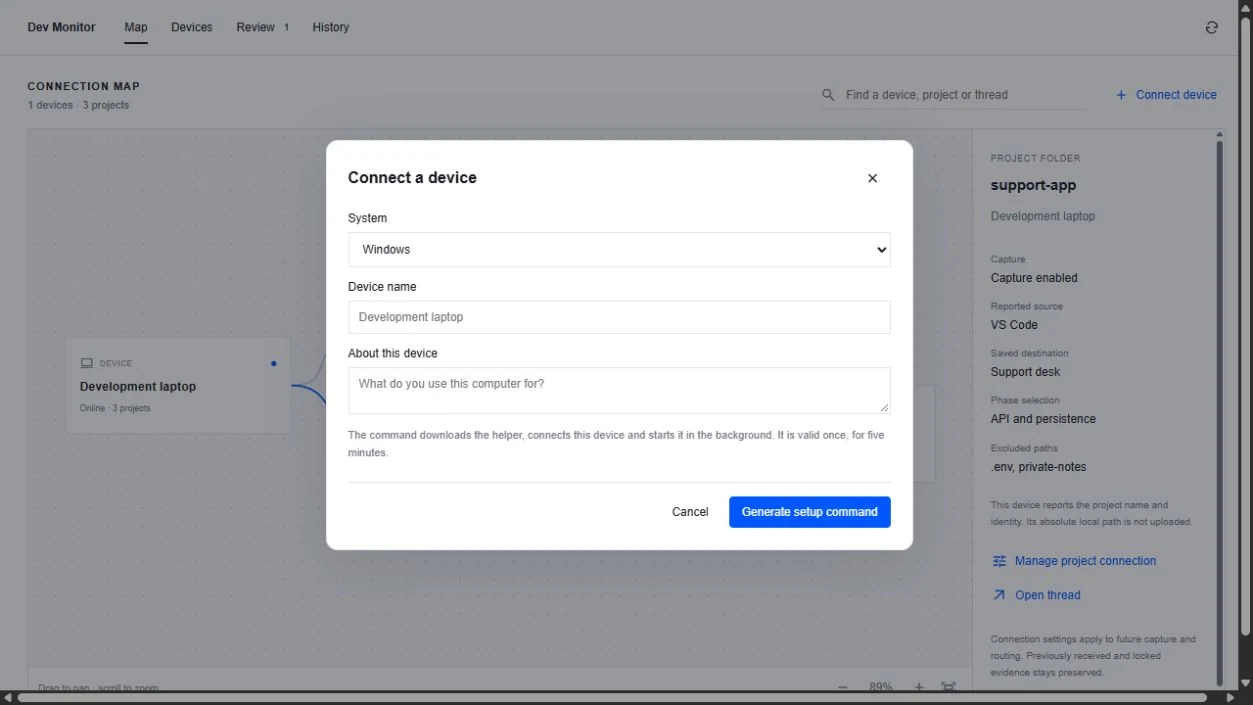
Open your personal workspace → Dev Monitor → Devices → Connect device. You can also start with Connect device on the Map.
- Choose Windows or macOS. Enter a recognizable device name and describe what you use it for.
- Choose Generate setup command, then Copy command. Copy the entire command from your own dialog; do not copy the PowerShell prompt, PS C:\…>, or a screenshot example.
- Paste it into PowerShell on Windows or Terminal on macOS on that computer, then press Enter. GRID’s Windows command begins with npx.cmd. Do not add an ampersand (&) before this generated npx.cmd command. The command downloads the helper automatically.
- Read each permission question. Type y or yes and press Enter only if you approve that permission; simply pressing Enter declines it and cancels setup. Leave the terminal open until it reports Device connected.
- Return to Dev Monitor → Devices and use Refresh Dev Monitor. Check the device name, Online state and adapter status. Online means connected—it does not mean a project has been assigned or enabled. Continue with Map projects, files and threads.
Understand the setup permissions
Default setup asks about five areas: installing the helper and protected local storage; discovering projects and capturing eligible evidence; automatic IDE adapters; starting after login/restarts; and cloud synchronization with remote device controls. Declining any required prompt cancels this setup before pairing/installing a new device. GRID approval does not override OS security restrictions, and setup does not change your cloud AI-processing settings.
Keep the key private
The setup key is single use and expires after five minutes. Never share it in messages, issues or screenshots. If it expires, has been used or was exposed, generate a fresh command. Do not run a command from someone else’s account.
After installation
Keep the success message until you have checked GRID. The helper is designed to run after login. Supported adapters can be prepared automatically; “Reload IDE” requires saving your work and reloading/restarting that IDE. Newly installed IDEs are checked periodically. A missing adapter or a Connected device is not evidence that all IDE output is captured.
Capture a command in an external terminal
Setup prints External terminal capture followed by this installation’s launcher path. For command output outside a supported IDE integration, open the terminal inside an enabled project folder and use that launcher, then --, then the program and its arguments (for example node script.js). Use the exact path printed by your installation, not a guessed global grid-dev command. A quoted launcher path needs the & invocation operator in PowerShell; macOS Terminal runs the quoted path directly. This is different from the generated npx.cmd setup command above. If the project is not enabled, the launcher reports that and does not start your command. Ordinary unwrapped terminal output must not be assumed to have been captured.
Command does not run?
If node or npm is not recognized, install/repair the official Node.js runtime, reopen the terminal and repeat the checks. If GRID says the helper package is being prepared, there is no usable Copy command yet: close the dialog and try a fresh setup after the package is available, or contact support. For an expired/used key, close and generate a new command. If PowerShell blocks an npm script, use GRID’s Windows command with npx.cmd rather than changing execution policy globally. Check proxy/firewall restrictions with your administrator.